CapCut voiceover guide

How to use ai voice on capcut for free: a cleaner voiceover workflow

How to use ai voice on capcut for free without making your edit feel robotic: prepare a short script, create the voice track, then shape the timing inside CapCut.

Check current access in workspace
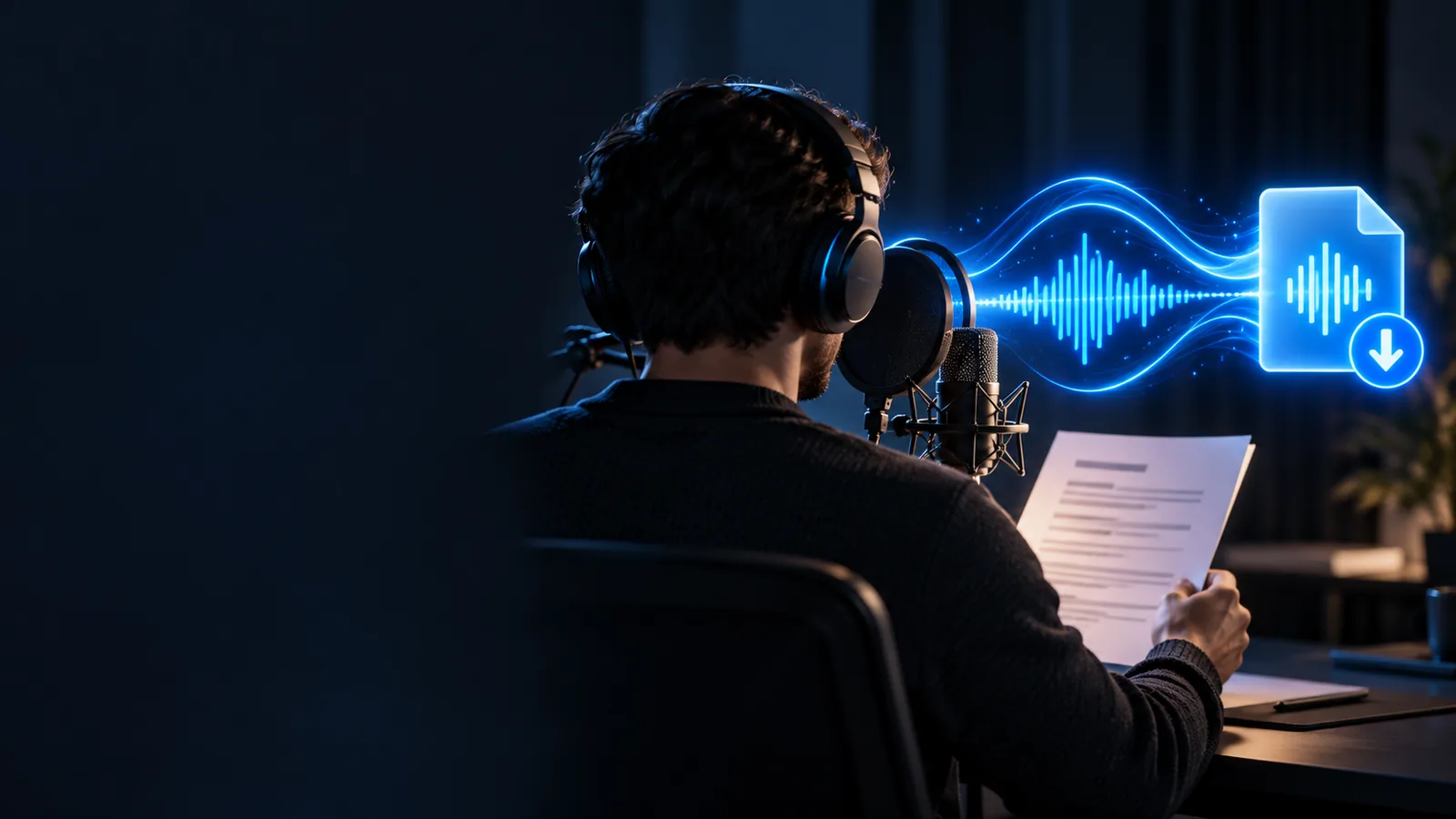
Voiceover creation workspace for a CapCut video

Start with the edit

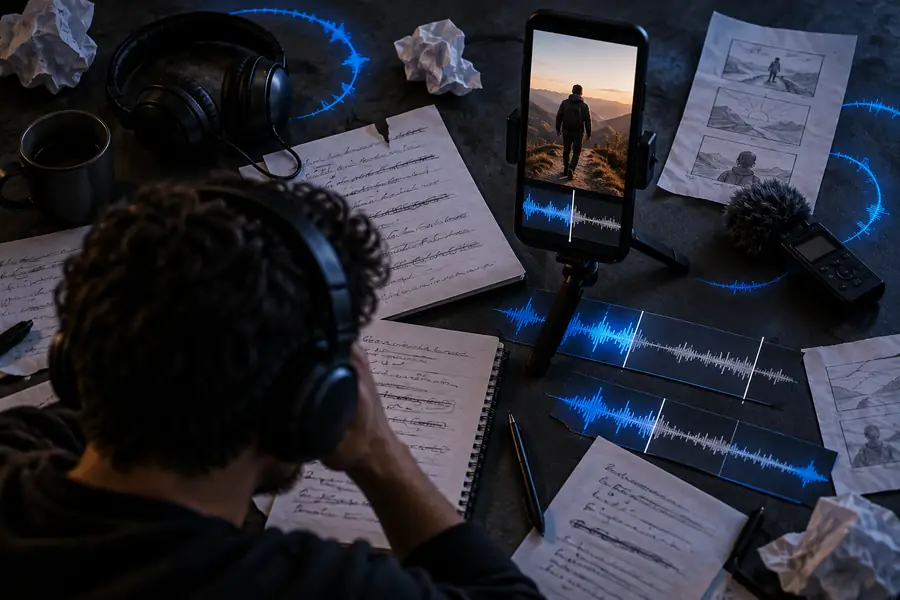
The CapCut voiceover problem

A polished video can lose momentum when the narration is hard to hear, poorly timed, or recorded in a distracting space. An AI voice workflow gives you a repeatable starting point before you fine-tune the edit.

Three practical routes

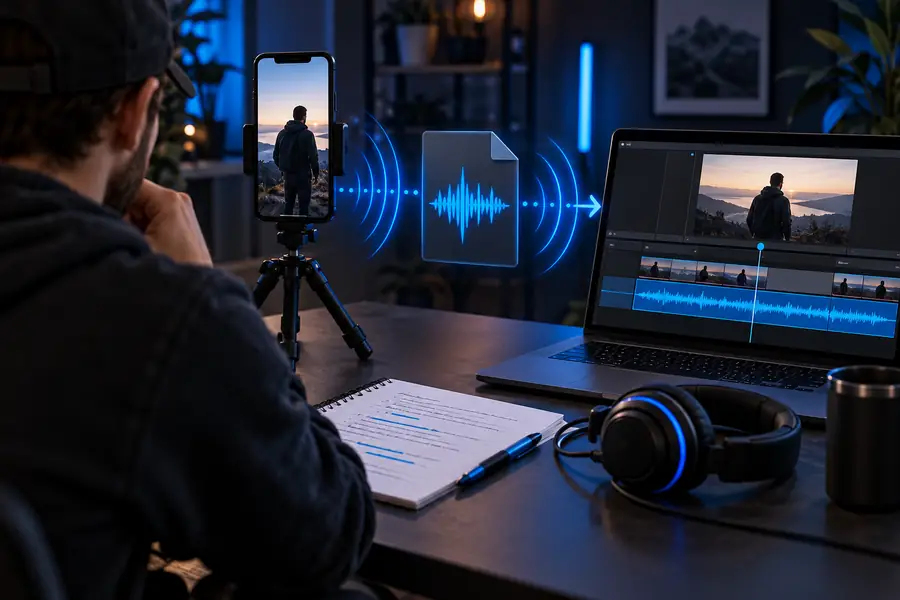
Three workflows for adding an AI voice

Choose the route that matches your project: generate a complete narration, build short clips for a montage, or replace a rough recording with a cleaner spoken track.

  1. 1

    Write for spoken delivery

    Keep the script conversational and split long ideas into short sentences. Add punctuation where you want a pause, and spell out names or numbers that might otherwise be misread.

  2. 2

    Create and prepare the track

    Use the voice workspace to turn the script into narration, then listen for pronunciation, pace, and tone. Regenerate only the lines that need work so the final edit stays consistent.

  3. 3

    Place and refine it in CapCut

    Import the audio into your project, align the first sentence with the visual hook, trim empty space, and lower music beneath the words. Add captions after the timing feels right.

Workflow at a glance

Languages represented across the Voicegenerator site
6 locales
A focused brief can begin the voiceover handoff
1 prompt
Full narration, short clips, or replacement audio
3 routes

Example output

From rough timing to a usable voice track

The difference is usually less about adding effects and more about giving each sentence room to land. Use the generated track as an editable layer, not as a final mix you must accept unchanged.

Unstructured voiceover timing beside a CapCut edit Before: rough timing
A cleaner voiceover aligned with clips in a CapCut edit After: aligned narration
Keep the voice track separate until the final mix.

Use it responsibly

Compliance notes for publishing AI voiceovers

A useful voice generator workflow also includes a review step. Check the script, the rights around your source material, and the expectations of the platform or audience before publishing.

Short-form creator

You have a strong visual hook but no quiet room or time for multiple takes.

Draft a concise narration, align it to the first few seconds, and keep the music low enough for every word to remain clear.

ai voice generator with emotion free

Tutorial editor

Your screen recording needs consistent instructions across several clips.

Use matching sentence patterns and pronunciation notes so each step sounds like part of one continuous lesson.

voice generator text to speech

Music and montage maker

The edit has strong rhythm but needs a spoken introduction or transition lines.

Create short voice segments, place them between musical phrases, and leave enough silence for the beat to breathe.

voice ai music generator

Brand or community publisher

The video represents a business, channel, or public project rather than a private draft.

Confirm that the script, music, footage, and chosen voice are appropriate for the intended use, and disclose synthetic narration when context makes that important.

ai voice announcement generator

Make your next CapCut voiceover easier to edit

Start with a specific script brief, create the narration, and bring the track into CapCut as a separate layer. You stay in control of pacing, captions, music balance, and the final publishing decision.

Draft a voiceover
  • Write for the ear, not the page
  • Review pronunciation before editing
  • Keep narration separate from music

Scenario FAQ

Questions about using AI voice in CapCut

Prepare a short script, create the narration in a voice workspace, and import the resulting audio into your CapCut project. Then align it with the clips, trim pauses, add captions, and balance the music under the speech. Check the current access and export terms in the workspace before starting.

The exact tools can vary by CapCut version, device, and region. A dependable alternative is to create the narration separately, save or export the audio when the workspace allows it, and then add that file to CapCut as an audio layer.

Natural results usually begin with a script written for speech. Use shorter sentences, punctuation for pauses, clear pronunciation notes, and a pace that leaves room for the visuals. In CapCut, trim excessive silence and keep background music below the narration.

Place the voice track beneath the video timeline and match its first clear phrase to the opening visual cue. Split or trim clips around sentence boundaries, then use captions as a timing check. Listen once with music muted and again with the full mix.

Safety depends on the script, voice, music, footage, and intended use. Avoid impersonating a real person without permission, review rights for every asset, and follow the disclosure or platform rules that apply to your project. When in doubt, use an original or clearly licensed voice style.

Start creating
Start creating