This guide shows how to use voice generator ios for a short narration or voice track, from preparing a script to reviewing the result before you move it into your project.
Prerequisites: choose your route
Use the related tutorials when your next step is editing the generated audio inside a mobile or desktop video workflow.
An iPhone can handle the full preparation and review process, but the exact controls depend on the voice tool and the app you hand the work to.
The same voice may not appear everywhere
Voice names, accents, and speaking controls can vary between a browser tool, an iOS app, and the editor where you place the audio.
Workaround
Save a short test before writing the full script, then keep the selected voice consistent.
Long scripts are harder to review on a phone
A large block of text makes it easier to miss awkward pauses, repeated words, or a sentence that sounds unlike the intended tone.
Workaround
Split the script into short scenes and review each scene before moving on.
Export controls may differ by route
Some workflows hand the result directly to another app, while others require you to save or share an audio file first.
Workaround
Check the share sheet after the first test and confirm which destination is available.
A generated voice is not a substitute for rights clearance
A synthetic voice can still create identity, impersonation, copyright, or permission concerns when it imitates a recognizable person or character.
Workaround
Use an original voice direction and obtain permission for any protected identity or supplied recording.
Numbered steps
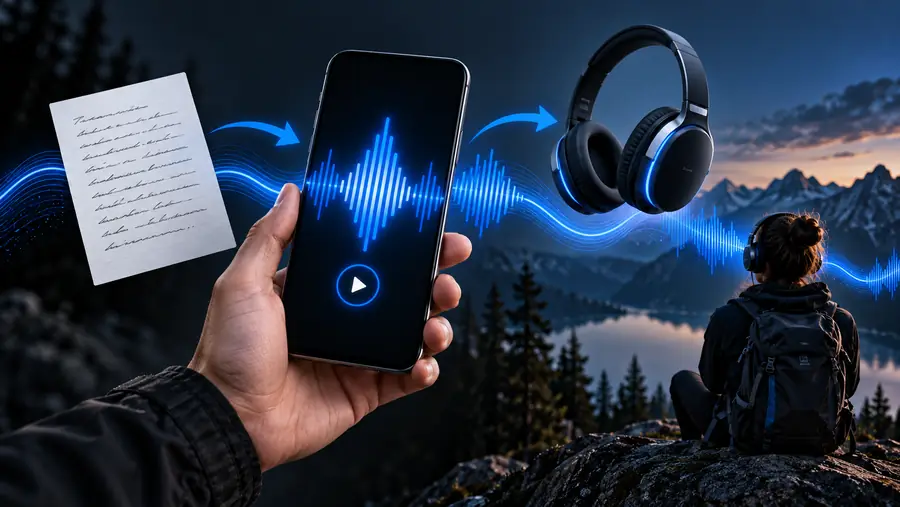
The reliable iPhone process is simple: prepare a focused script, generate a short test, then review the audio before building the final edit.
1
Prepare the script
Write the words first and remove stage directions that should not be spoken. Add punctuation where you want a pause, and separate scene changes into their own short blocks.
2
Describe the delivery
State the purpose, audience, pace, and mood in plain language. For example, ask for a warm, clear travel narration rather than relying on a vague request for a good voice.
3
Generate a short test
Start with one paragraph or a single scene. Listen for pronunciation, emphasis, speed, and pauses before you commit the rest of the script.
4
Review and move it
Adjust the wording or direction, create the remaining sections, and use the iPhone share or save action that fits your editing workflow.
Numbered steps: check the result
A short test makes the difference between text that looks correct and audio that actually works in a video, presentation, or social clip.
Script prepared
Voice ready
Listen for pacing before you continue. A clean script is only the starting point; the result should also sound natural at the speed your audience will hear.
Common errors and fixes
Use this quick comparison to decide whether the problem is in the script or in the way the audio is being handled on the phone.
Script issue
Workflow issue
What you notice
Script issue
A word sounds wrong or the sentence feels unnatural.
Workflow issue
The audio is difficult to find or place in the next app.
First check
Script issue
Review spelling, names, punctuation, and abbreviations.
Workflow issue
Open the share or save options and confirm the destination.
Best test
Script issue
Generate only the affected sentence or scene.
Workflow issue
Send a short test clip before preparing the full project.
Useful adjustment
Script issue
Rewrite the sentence in the way a person would say it aloud.
Workflow issue
Keep the source app open until the transfer is confirmed.
When to split
Script issue
Separate a long sentence when the emphasis is unclear.
Workflow issue
Split the audio when each scene needs independent timing.
Final check
Script issue
Listen with the script hidden so you judge the sound, not just the wording.
Workflow issue
Play the result from the destination app to verify that it arrived correctly.
Common errors and fixes: match the workflow
Different creators need different handoffs. Choose the route that matches what you plan to do immediately after generating the voice.
Short-form creator
You are making a vertical clip on an iPhone and need narration that follows several quick scenes.
Prepare one short voice block per scene, then continue with the mobile editing workflow in [how to add ai voice in capcut mobile].
You want to compare a few openings before committing to a complete explainer, tutorial, or product clip.
Generate several short openings, listen for clarity, and use [how to add ai voice in capcut mobile] when the selected version is ready for a phone edit.
Treat the voice track like an edit, not a one-click final. These checkpoints keep the iPhone workflow easier to repeat and troubleshoot.
Read the script aloud before generating it
01pass
Review pronunciation and pacing in the test
02checks
Separate scenes when timing needs control
03parts
Confirm the share or save handoff
04steps
Advanced tips: keep your workflow ready
Turn one iPhone test into a repeatable voice workflow
Start with a small, specific prompt and a short script, then improve the result through listening rather than guessing. When the voice sounds right, keep the scene structure intact so the next edit is easier to organize.
Test one scene before preparing the full narration.
Keep the destination app in mind before you share the result.
Tutorial FAQ
These answers cover the practical questions people ask when they first try an iPhone voice workflow.
Open the voice tool in the route you prefer, prepare a short script, and describe the tone or delivery you want. Generate a small test first, listen for pronunciation and pacing, then revise the script or direction before creating the remaining sections.
You can use an iPhone browser or an iOS app when the chosen voice tool provides that route. The visible controls may differ, so confirm how the result is saved or shared before preparing a long script.
Write short, spoken sentences and use punctuation to guide pauses. Spell out unusual names or abbreviations when pronunciation matters, and separate different scenes so each part can be reviewed independently.
The issue may come from long sentences, unclear punctuation, unexpected names, or a delivery direction that is too vague. Shorten the affected passage, describe the intended pace and mood more clearly, and generate that passage again as a focused test.
Use the tool's share, save, or handoff control and select the editing app when it is offered. If the destination is not visible, save the result first, then open the editor and import or attach the saved audio through its normal media workflow.